Captions on the main screen, without a new screen.
Not everyone will take out a phone. Put the translation on the display the room is already looking at — as a lower third under your lyrics, a bilingual panel, or full-bleed text — using the presentation software your team already knows.
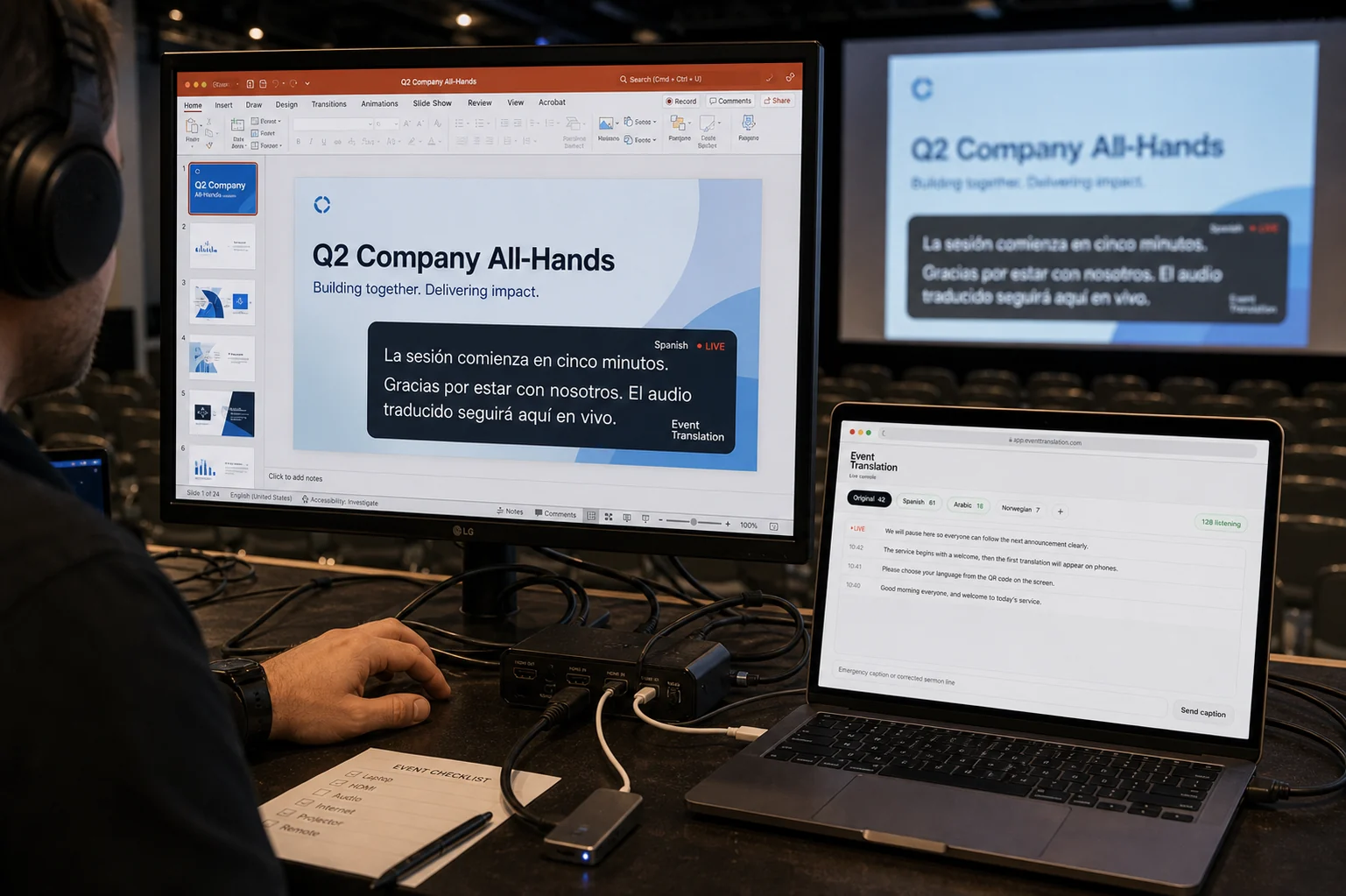
One URL, pasted into a browser source.
The booth gives you a link. Your presentation software already knows how to show a web page as a layer — so you paste the link in once, and translated captions appear over whatever else is on that screen. No plugin, no driver, no new box in the rack.
- ProPresenter, EasyWorship, OBS, vMix — anything with a web or browser source
- PowerPoint and Keynote — a floating always-on-top overlay from the desktop app instead
- Transparent background — it layers over your slides instead of replacing them
- Green-screen mode — for switchers that want a chroma key instead of alpha
Four presets, then make it yours.
Start from a preset and adjust. The overlay is a web layer, so type, size, position and colour are all yours to set — and it can hold your own look rather than ours.
Lower third
A single band across the bottom. The safest choice when the screen is already busy with lyrics or slides.
Original + translation
Both languages stacked, the source above and the translation below — good for classrooms and bilingual congregations.
Bare text
No panel, no background — just the words, for when you want the design to come from your own template.
Green screen
A solid chroma background for video switchers and hardware that can't take an alpha channel.
Describe the look you want
Type what you're after in plain words — "thin white type, no box, bottom left" — and the overlay design is written for you.
Preview before it's live
The booth shows exactly what the screen will show, so you can size and place it before anyone is looking.
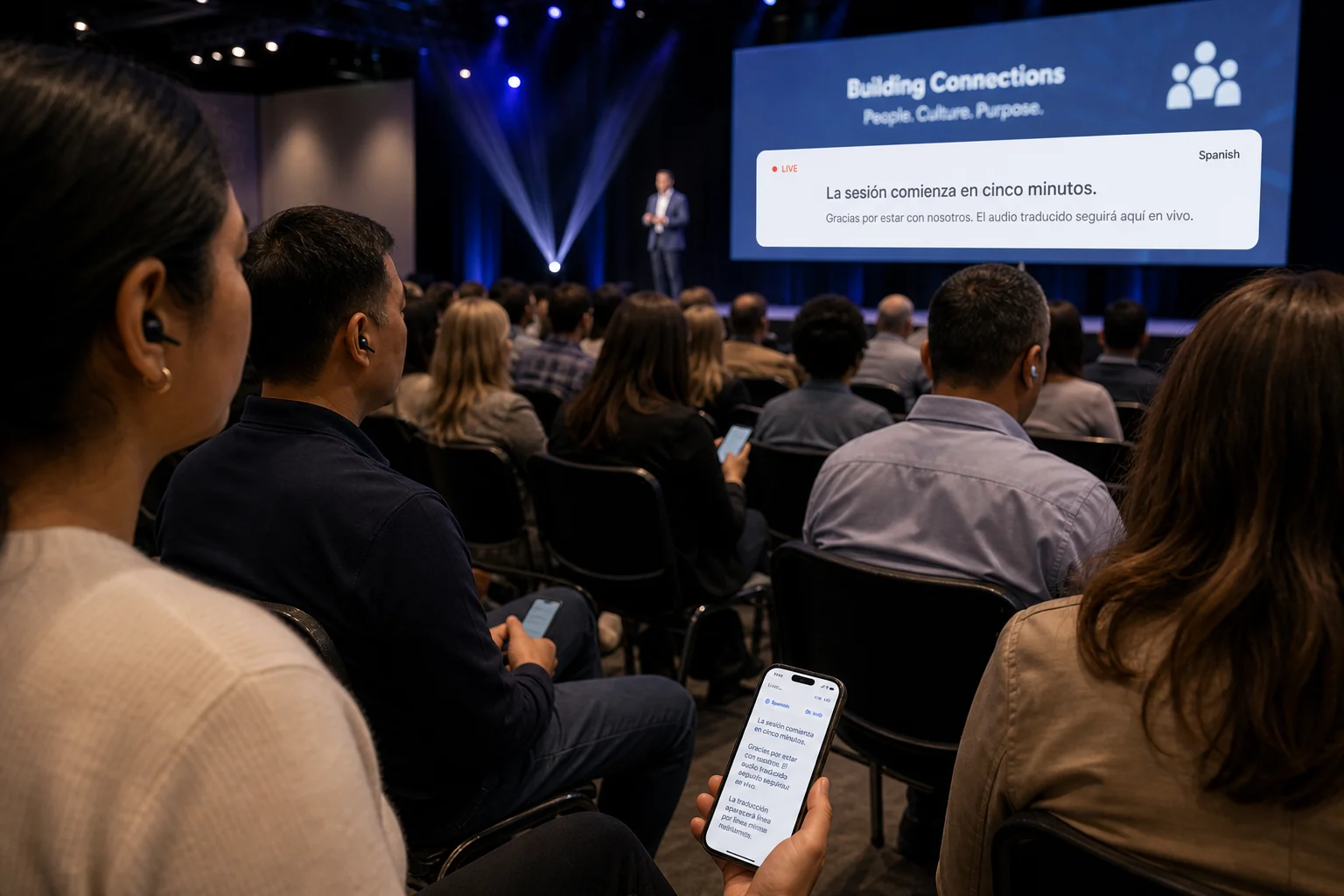
The screen serves the room. Phones serve the individual.
A shared screen can only carry one or two languages, so it usually shows the biggest second language in the room — or the source language, as accessibility captions for anyone hard of hearing. Everything else lives on phones, where each person picks their own.
About ten minutes, once.
Copy the URL
The booth shows a browser-source link for the session's caption overlay.
Add it as a layer
Paste it into a web/browser source in your presentation software and place it on the output screen.
Save it in your template
Keep the layer in the template you use every week. Next time it's already there.
Overlay questions.
Does it cover our lyrics or slides?
No — the overlay background is transparent, so it sits as a layer above your existing content. You choose where on the screen it sits and how much room it takes.
We use PowerPoint, which has no browser source.
Use the floating overlay from the Koine desktop app instead. It's an always-on-top window that hovers over PowerPoint, Keynote, or anything else on that display.
Can we show captions in the source language for accessibility?
Yes. Running the overlay in the same language as the speaker gives the room live same-language captions, which is often the reason a venue turns it on in the first place.
Does the overlay need its own computer?
No. It's a web layer inside the software you already run on the machine that drives the screen.
Which plans include overlays?
Overlays are included from the Standard plan upward, and in every event pass. See pricing.